
How to Check Your PHP Version and Prepare for Emergency Security Updates

Knowing which PHP version your website uses is an important part of maintaining a secure server. When critical vulnerabilities are announced, administrators need to identify affected installations quickly and determine how official security updates are distributed.
The October 2026 PHP security incident demonstrates why routine inventory and patch management matter. Website owners who do not know which runtime powers their applications may struggle to respond when urgent fixes become available.
Method 1: Check PHP in WordPress
For WordPress websites, sign in to the administrative dashboard and open Tools → Site Health → Info → Server.
Locate the PHP version field. Record the value and the date you checked it.
This is usually the easiest approach for website administrators without command-line access.
Method 2: Check Your Hosting Dashboard
Many hosting providers display PHP settings in their account dashboards.
Depending on the platform, the relevant area may be called PHP Settings, PHP Selector, MultiPHP Manager, or Server Configuration.
Check the version assigned to the specific domain or application. A hosting account may contain multiple websites with different configurations.
Method 3: Use the Command Line
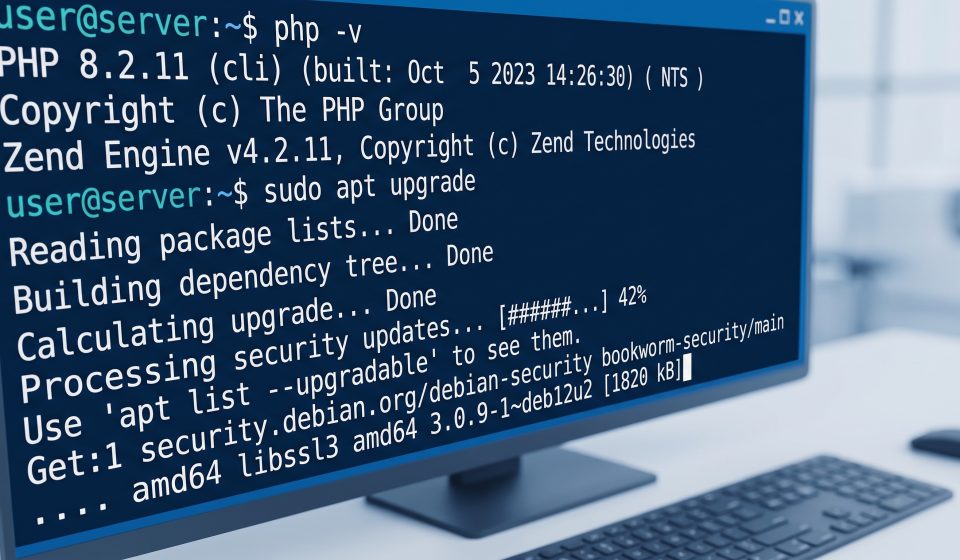
On systems where you have authorized terminal access, the following command displays the PHP command-line version:
php -vHowever, this command reports the command-line interpreter. The web server may use a different PHP installation or PHP-FPM pool.
Administrators should inspect the relevant service configuration rather than assuming both versions are identical.
Identify the Package Provider
Before updating PHP, determine who maintains the installation.
PHP may come from an operating system repository, a commercial hosting provider, a control panel vendor, a container image, or a custom build.
Use the corresponding vendor’s security guidance. Mixing incompatible package sources can create operational problems.
Check for Fixed Versions
Visit PHP.net and review the security release notes. If you use vendor-packaged PHP, consult that vendor’s advisory too.
Fixed versions and package names can differ by platform. Some vendors backport fixes to supported release branches.
For CVE-2026-109618 and CVE-2026-109619, confirm the officially affected versions and patches rather than relying on preliminary reports.
Prepare a Backup and Rollback Plan
Before changing production software, ensure that application files, databases, and configuration are backed up.
Document how to restore the previous working environment if the update causes a compatibility issue.
A rollback plan should not involve permanently returning to a vulnerable version. Its purpose is to manage service continuity while a safe remediation path is established.
Test Before Production Deployment
Use a staging environment when available. Test authentication, database connections, forms, scheduled tasks, file uploads, and business-critical workflows.
Review logs for warnings and errors. Some incompatibilities may appear only in specific application paths.
Apply the Official Update
Follow the instructions provided by the package vendor or hosting platform.
Depending on the environment, PHP-related services may need to be restarted or reloaded after installation.
Confirm that the application is using the patched runtime and that the update completed successfully.
Monitor After Patching
Review application behavior, error logs, and security monitoring. Look for unexpected failures and suspicious activity.
For public-facing services, document when remediation was completed and which versions or packages were installed.
Build a Sustainable PHP Update Process
Maintain an inventory of PHP applications, identify responsible owners, subscribe to vendor advisories, and regularly review unsupported software.
For additional guidance, read our October 2026 PHP vulnerability overview and PHP security checklist for ecommerce websites.
Frequently Asked Questions
What command checks the PHP version?
The command php -v displays the command-line PHP version.
Can the website use a different PHP version?
Yes. Web server configurations may use a different PHP runtime from the command line.
Should I install unofficial emergency patches?
Use official PHP releases or trusted vendor packages rather than unverified downloads.
Why should I test after updating PHP?
Updates can expose compatibility problems in older applications, plugins, or extensions.
Does the highest version number always mean the safest package?
Not necessarily. Supported vendors may backport security fixes to maintained versions.